 SpaceSharp
 Navigating
Moving around the map
| Action | How |
|---|---|
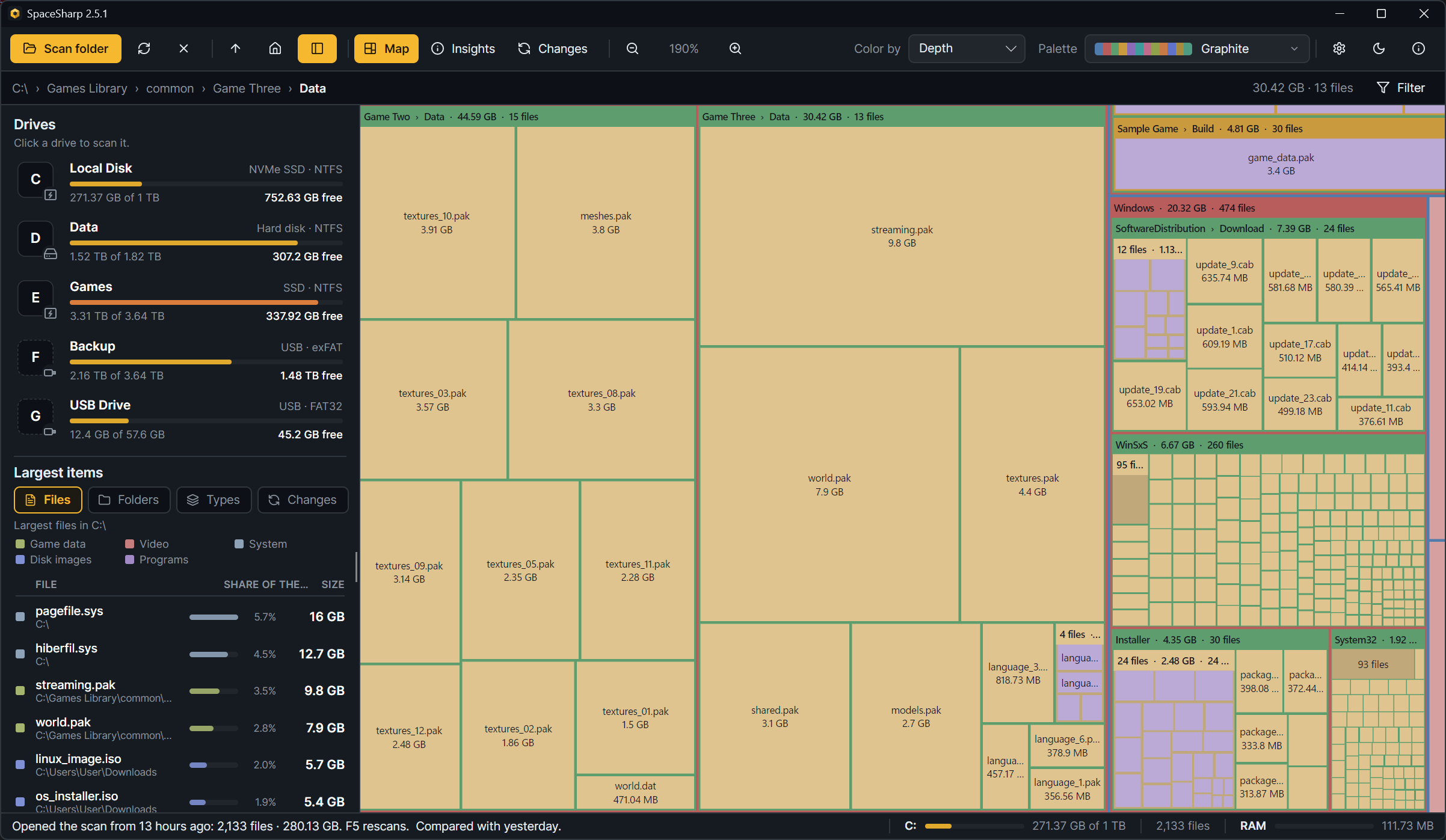
| Zoom into a folder | Double-click it |
| Up one folder | Backspace, the Up button, or a crumb in the path row |
| The whole map | Home, or the home button |
| Zoom in and out freely | Mouse wheel, or + and − |
| Pan while zoomed in | Drag the map |
| Back to the start screen | Ctrl+W, the × next to Rescan, or Close the scan in the right-click menu |
Zoom animates by default (Settings › Behavior › Animate zoom).
The path row
Under the toolbar: the path to the folder you are looking at, each part a button. On the right, the Filter button (The filter).
The side panel
On the left; L or the panel button hides and shows it, and its edge drags to set its width.
- Drives: every drive as a tile tinted by its kind (amber NVMe, green SSD, grey spinning disk, blue removable, purple network, orange optical) with the letter on it, then its label, the kind with the icon Windows uses for it, how full it is, and free space. Click one to scan it. The line under the list drags to give the list more or less room.
- Largest items: a Files / Folders / Types switch, then the top of each. Click a row to go to it on the map; hover for its path. The Share column shows each item's share of the scan.
The three views
The toolbar switches what fills the map's place: Map, Insights (Insights) and Changes (Changes); B cycles them. Zoom and the path row belong to the map; the other two have their own controls.
The right-click menu
On any box:
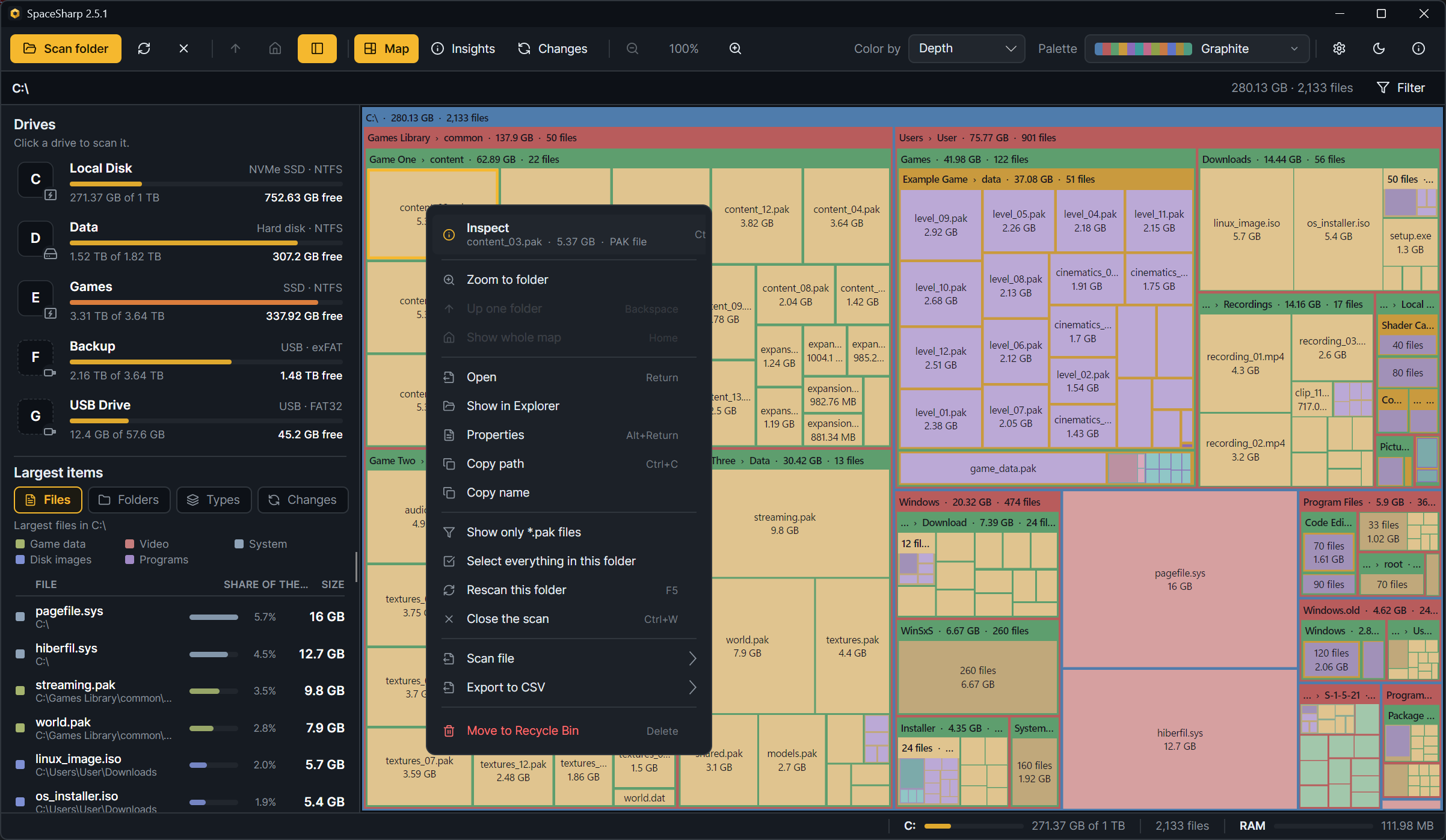
- Inspect (Ctrl+I): the item in depth (Inspect).
- Zoom to folder, Up one folder, Show whole map.
- Open, Show in Explorer, Properties (Alt+Enter), Copy path (Ctrl+C), Copy name.
- Show only this file type: filters the map to files with this extension.
- Select everything in this folder, Rescan this folder (F5 rescans the whole scan), Close the scan (Ctrl+W).
- Scan file: Save scan as… (Ctrl+S), Open saved scan… (Ctrl+O), Compare with a saved scan…, Stop comparing.
- Export to CSV: Largest files, This folder, or Filter matches.
- Move to Recycle Bin (Del), and Delete permanently for the folders Explorer cannot open (Cleaning up).
The status bar
Left: the hovered or selected item and its share of the scan, or the last thing that happened. Right: a meter of how full the drive is (orange from 85%, red from 92%), the file count, and SpaceSharp's own memory use as a bar against the PC's memory.
Selecting several
Ctrl+click adds a box to the selection, Shift+click selects a range, and Ctrl+A selects every file the filter matches. The right-click menu, Inspect and Del act on the whole selection.